Open OnDemand
Open OnDemand is a web-based interface that provides easy access to DelftBlue resources through your browser. It allows you to manage files, submit jobs, run interactive applications, and access a remote desktop without the need for SSH command-line tools.
Accessing Open OnDemand
The Open OnDemand portal is available at:
https://login.delftblue.tudelft.nl/
Browser Compatibility
Microsoft Edge might give an "Unauthorized" error. Mozilla Firefox and Google Chrome are recommended and work reliably.
Login
- Navigate to https://login.delftblue.tudelft.nl/
- Sign in with your TU Delft NetID and password
- You will be redirected to the Open OnDemand dashboard
First-time users
Please be aware: Open OnDemand does not trigger creation of the /home and /scratch folders for new users automatically! If your first ever login to DelftBlue is via Open OnDemand, you should get a warning that your home directory was not found.

On that screen, click Open Shell, type logout in the shell that opens, close it, then click Reload Webportal. Your /home and /scratch will then be available in Open OnDemand.
VPN Required for Off-Campus Access
Access to Open OnDemand from outside the university network requires TU Delft's EduVPN for "Institute Access". Once connected via VPN, you can access the portal directly.
Features
File Management
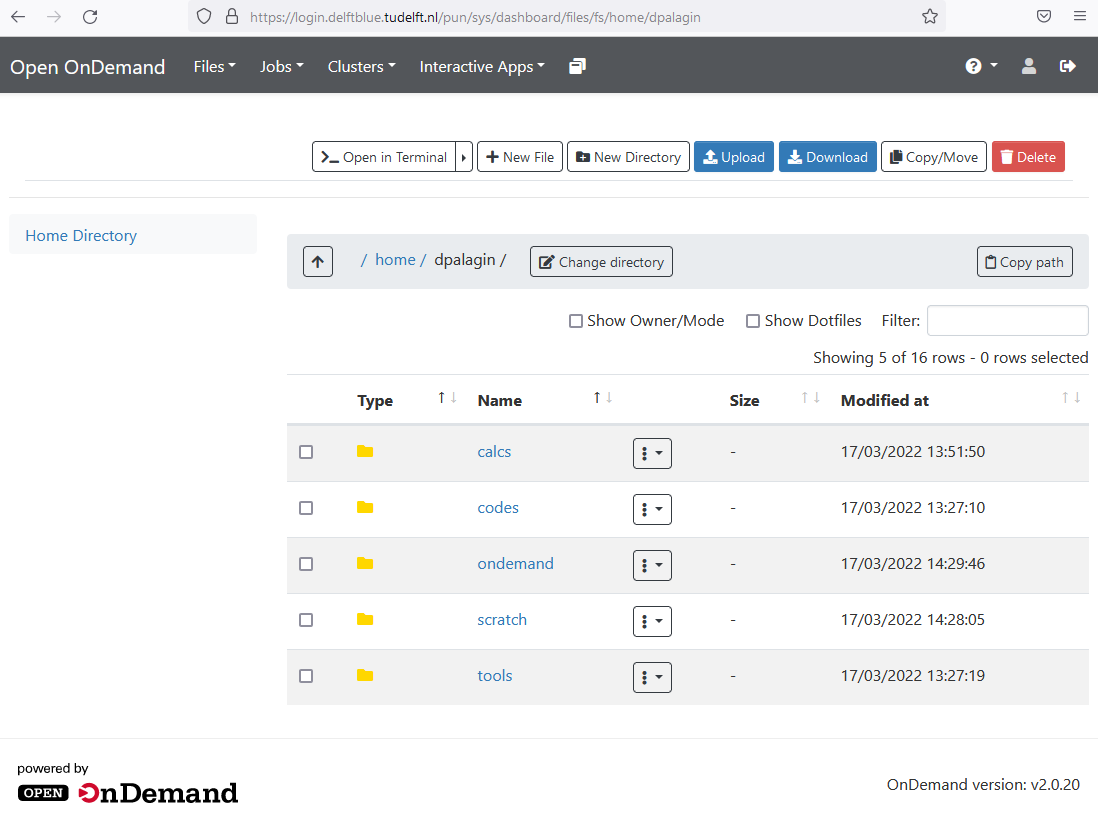
The Files menu provides a web-based file browser for your DelftBlue directories:
- Browse your
/homeand/scratchdirectories - Upload and download files through the browser
- Create, rename, and delete files and folders
- Edit text files directly in the browser
- View file permissions and properties
Shell Access
Open a terminal directly in your browser by clicking "Clusters" → "DelftBlue Shell Access". This provides the same command-line interface as SSH, but accessible through the web browser.
Job Management
Monitor and manage your Slurm jobs through the web interface:
- View active jobs
- Check job status and queue position
- View job output and error logs
- Cancel running jobs
Interactive Applications
Open OnDemand provides easy access to interactive applications. From the "Interactive Apps" menu, you can launch:
DelftBlue Desktop
A full remote desktop session running on a DelftBlue visualisation node:
- Select "Interactive Apps" → "DelftBlue Desktop"
- Fill in the form:
- Account (e.g.,
research-<faculty>-<department>) - Runtime [h] (maximum 4 hours)
- Extra arguments for Slurm — the CPU and memory request, e.g.
--ntasks=1 --cpus-per-task=8 --mem-per-cpu=2G. The form has no separate cores/memory fields, and the job is rejected if these are missing.
- Account (e.g.,
- Click "Launch"
- Wait for the job to start (it enters the queue like a normal Slurm job)
- Click "Launch DelftBlue Desktop" when the session is ready
- Access your desktop directly in the browser
From the desktop, you can:
- Open a terminal
- Load software modules
- Run graphical applications (MATLAB, ParaView, etc.)
Graphical applications render with software OpenGL (Mesa); vglrun is not
available. For more information, see the
visualisation nodes documentation.
JupyterLab (Apptainer)
Launch Jupyter Lab or Jupyter Notebook sessions with specialised environments:
- Select "Interactive Apps" → "JupyterLab (Apptainer)"
- Choose from multiple pre-configured environments:
- PyTorch with CUDA support - For deep learning with GPU acceleration
- TensorFlow with CUDA support - Machine learning with GPU support
- Multi-language data science - Python, R, and Julia in one environment
- PySpark - For big data processing
- Minimal installation - Lightweight environment for basic tasks
- Configure your session (cores, memory, time, GPU if needed)
- Launch and access Jupyter directly in your browser
For detailed information on using Jupyter on DelftBlue, see the Jupyter documentation.
MATLAB
Run MATLAB with full GUI support in your browser:
- Select "Interactive Apps" → "MATLAB"
- Configure your Slurm settings (account, cores, memory, time)
- Launch the session
- Access MATLAB with full GUI support in your browser
The MATLAB application provides a complete desktop environment optimised for computational work.
ParaView
Scientific visualisation with GPU-accelerated rendering:
- Select "Interactive Apps" → "ParaView"
- Configure your session settings
- Launch with EGL containers for hardware-accelerated GPU rendering
- Access ParaView directly in your browser
ParaView on Open OnDemand uses GPU acceleration for high-performance visualisation of large scientific datasets.
RStudio (Apptainer)
Run RStudio Server with multiple R versions available:
- Select "Interactive Apps" → "RStudio (Apptainer)"
- Choose your preferred R version
- Configure your session (cores, memory, time)
- Launch and access RStudio in your browser
RStudio Server provides a familiar IDE for R programming and statistical computing.
VS-Code (Apptainer)
Web-based VS Code for development directly on DelftBlue:
- Select "Interactive Apps" → "VS-Code (Apptainer)"
- Configure your session settings
- Launch and access VS Code in your browser
- Edit code, run terminals, and use extensions
VS Code Server provides a full-featured development environment without needing to install anything locally.
Advantages of Open OnDemand
- No SSH client needed: Access DelftBlue from any device with a web browser
- User-friendly interface: Ideal for users less familiar with command-line tools
- File management: Easy drag-and-drop file uploads and downloads
- Interactive applications: Launch graphical applications without setting up X11 forwarding or VNC
- Cross-platform: Works on Windows, macOS, Linux, and even tablets
Limitations
- File uploads through the browser have size limitations (for large datasets, use SCP/SFTP or other transfer methods)
- Some advanced SSH features (like SSH key forwarding) are not available
- Interactive desktop sessions are limited to 4 hours maximum
- Desktop sessions render with software OpenGL (Mesa); for GPU-accelerated visualisation use the dedicated ParaView Interactive App
Getting Help
If you encounter issues with Open OnDemand, please contact the DelftBlue support team. For general help with DelftBlue, see the Frequently Asked Questions.